
 Jane
Jane
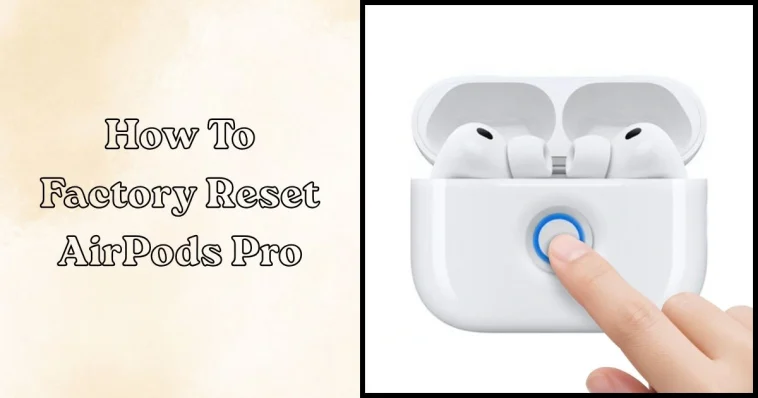
The AirPods Pro continue to stand out as one of Apple’s most popular wireless earbuds, especially for users who rely on seamless audio across devices. However, like any smart device, they can sometimes run into connection issues, audio glitches, or pairing errors. That is where understanding how to factory reset AirPods Pro becomes essential for restoring smooth performance without unnecessary stress.
Recent discussions around Apple’s ecosystem updates and user feedback trends highlight how often simple resets solve common problems. Many users searching for solutions like how to reset AirPods Pro are surprised at how quickly a full reset can fix lag, syncing issues, or battery display errors. With the right steps, it takes only seconds to bring the earbuds back to a clean, fresh state.
Why Resetting AirPods Pro Matters
Resetting wireless earbuds might sound like a last resort, but it is often one of the most effective fixes. The AirPods Pro rely heavily on Bluetooth connections and device memory, which can occasionally become overloaded or misaligned. A reset clears these small glitches and restores default settings.
Another reason users choose to reset AirPods Pro is when switching between multiple devices. Whether moving from an iPhone to an iPad or pairing with a MacBook, stored connections can sometimes conflict. A reset helps remove old pairing data and ensures a smoother connection experience moving forward.
Common Issues That Lead To A Reset
Many users do not realize how many small issues can be resolved by a reset. The most common complaints involve unstable connections, uneven audio output, or one earbud not working properly. These issues often appear after software updates or long-term usage.
Another frequent problem is battery inconsistency. Sometimes the charging case or earbuds may display inaccurate battery levels. In these situations, learning how to reset AirPods Pro can help recalibrate the system and restore accurate performance readings.
Common issues include:
- One AirPod is not connecting properly
- Audio dropping in and out during calls or music playback
- The charging case is not responding correctly
- Bluetooth pairing failures
- Battery percentage not updating correctly
How To Factory Reset AirPods Pro In Seconds
Knowing how to factory reset AirPods Pro is simple; the process takes only a few steps. This method completely clears existing connections and restores the earbuds to factory settings. It is often recommended before troubleshooting more complex issues.
Follow these steps carefully to complete a full reset:
- Place both AirPods Pro inside the charging case
- Close the lid and wait for about 30 seconds
- Open the lid of the charging case
- On your iPhone or connected device, go to Bluetooth settings
- Locate your AirPods Pro in the list of available devices
- Tap “Forget This Device”
- Press and hold the setup button on the rear of the case
- Keep holding the button until the status light turns amber and then changes to white
- Release the button and reconnect the AirPods Pro
Once completed, the AirPods Pro will behave like a brand-new device ready for pairing. This process is one of the fastest ways to fix persistent connection issues without needing technical support.
What Happens After A Reset
After performing a reset, the AirPods Pro will lose all previously stored connections. This means they will need to be paired again with any device. The process is similar to setting them up for the first time, which makes it easy for most users.
Another important change is that personalized settings, such as device-switching preferences, may be cleared. However, this clean slate often improves performance. Many users notice faster pairing, more stable audio, and fewer interruptions after completing a reset.
Alternative Ways To Fix AirPods Pro Without A Full Reset
A full reset is effective, but it is not always the only solution. Sometimes, smaller troubleshooting steps can fix issues without wiping all settings. These methods are useful for users who prefer minimal disruption.
One option is simply reconnecting Bluetooth on the device. Turning Bluetooth off and then back on can refresh the connection. Another method is to place the earbuds back into the case and ensure they are charging properly before reconnecting.
Other quick fixes include:
- Restarting the connected iPhone or iPad
- Cleaning the AirPods Pro sensors and charging contacts
- Updating the device software
- Checking battery levels of both earbuds and the case
These simple actions can often resolve minor issues before a full reset is needed.
When A Reset Becomes Necessary
There are moments when basic troubleshooting is not enough. If the AirPods Pro continue to disconnect or fail to pair after multiple attempts, a reset becomes the most reliable solution. It ensures that all corrupted connection data is removed.
Users also turn to a reset when selling or giving away their earbuds. Clearing stored data protects privacy and ensures the next user starts with a clean device. In such cases, knowing how to reset AirPods Pro properly is essential.
AirPods Pro Performance And Everyday Use
The AirPods Pro are known for their active noise cancellation, transparency mode, and adaptive audio features. These functions rely heavily on software calibration, which can occasionally drift over time. A reset helps restore these features to their original efficiency.
In everyday use, the earbuds are designed to switch smoothly between devices and maintain stable connections. However, heavy usage or frequent switching between Apple devices can sometimes cause lag. Resetting restores balance and ensures consistent performance across all functions.
Connectivity Tips For Better Performance
Even after a reset, proper usage habits can help maintain strong performance. The AirPods Pro work best when kept within Apple’s ecosystem, but they still perform well with other Bluetooth devices when configured correctly.
Maintaining stable connectivity involves keeping software up to date and avoiding interference from multiple active Bluetooth devices. This helps reduce signal drops and improves pairing speed.
Helpful tips include:
- Keep devices updated with the latest software
- Avoid connecting to multiple devices at the same time
- Store AirPods Pro in the case when not in use
- Maintain a clean charging case and earbuds
- Reset occasionally if performance starts to drop
Troubleshooting After A Reset
In rare cases, issues may continue even after a reset. This is usually related to hardware or deeper software conflicts. If the AirPods Pro still fail to connect properly, further steps may be needed.
Checking compatibility with the connected device is important. Older operating systems may not fully support newer AirPods Pro features. Ensuring proper system updates often resolves hidden compatibility issues.
If problems persist, it may indicate battery wear or a hardware malfunction. In such cases, professional support may be required to diagnose the issue.
Maintenance Tips To Avoid Frequent Resets
Keeping AirPods Pro in good condition reduces the need for frequent resets. Regular cleaning and proper storage are key to long-term performance. Dust or debris can interfere with sensors and charging connections.
Another important habit is avoiding extreme temperatures. Exposure to heat or cold can affect battery performance and Bluetooth stability. Proper care helps extend the device’s lifespan and maintain consistent performance.
Best maintenance practices:
- Clean earbuds regularly with a soft cloth
- Keep the charging case clean and dry, away from dust and moisture
- Avoid dropping or exposure to extreme heat
- Store properly when not in use
- Charge using reliable cables and adapters
Frequently Asked Questions
- What Does “How To Factory Reset AirPods Pro” Mean?
It refers to restoring the AirPods Pro to their original settings by erasing all saved connections and data. This process helps fix common issues such as pairing errors, sound glitches, and syncing problems. It is often used as a quick troubleshooting method when normal fixes do not work.
- How Do You Reset AirPods Pro Quickly?
To reset AirPods Pro, place them in the charging case, forget the device in Bluetooth settings, then hold the setup button until the light flashes amber and white. This completes the reset process in seconds. After that, the AirPods Pro can be paired again like new.
- Will Resetting AirPods Pro Delete Everything?
Yes, resetting removes all previously paired devices and restores default settings. This means the AirPods Pro must be reconnected to your phone, tablet, or computer. It does not affect your Apple account; only the earbuds’ saved connections are affected.
- When Should You Reset AirPods Pro?
Reset AirPods Pro when you experience frequent disconnects, one earbud not working, charging issues, or pairing failures. It is also useful when switching to a new device or preparing to sell or give away the earbuds. This ensures a clean setup for the next use.
- Does Resetting AirPods Pro Fix Battery Or Sound Issues?
In many cases, yes. A reset can help correct inaccurate battery readings, improve syncing between earbuds, and fix minor sound imbalances. However, if hardware damage is present, additional support may be required.
Final Thoughts On Resetting AirPods Pro
Understanding how to reset AirPods Pro is one of the most useful troubleshooting skills for any user. It provides a fast and effective way to fix common issues without complicated steps or technical support. In most cases, a simple reset restores full functionality within seconds.
As wireless audio technology continues to evolve, the AirPods Pro remain a strong example of convenience and smart design. Knowing when and how to reset them ensures a smoother experience, better performance, and fewer interruptions in daily use.